Collision Commander gives you a single, always-live panel to see how every preset interacts with every other, color-coded, queryable, and ready for what-if experiments before you touch Project Settings.
↑ Live color-coded matrix. Every preset vs every preset, always current.
Why Collision Commander exists
As projects grow, these five problems compound. The standard tools give you no way to see them all at once.
Presets get edited in Project Settings without shared docs updating. No one notices until a late bug report arrives.
UE supports 18 custom channels. Studios routinely hit this limit late in production with no visibility into which are actually used.
Each channel has two independent responses. Treating them as one causes subtle gameplay bugs: triggers that don't fire, physics that passes through floors.
Both actors need Generate Overlap Events enabled AND a non-Ignore response. When a trigger doesn't fire, finding which condition failed takes minutes.
Manual collision matrices become outdated within days. A wrong matrix is worse than none. Team members trust it and waste time chasing phantom bugs.
Five panels. Always live. Every interaction visible at a glance.
What's inside
Every feature lives in a single dockable editor tab under Window → Collision Commander. No jumping between screens.
Panel 01 — Matrix
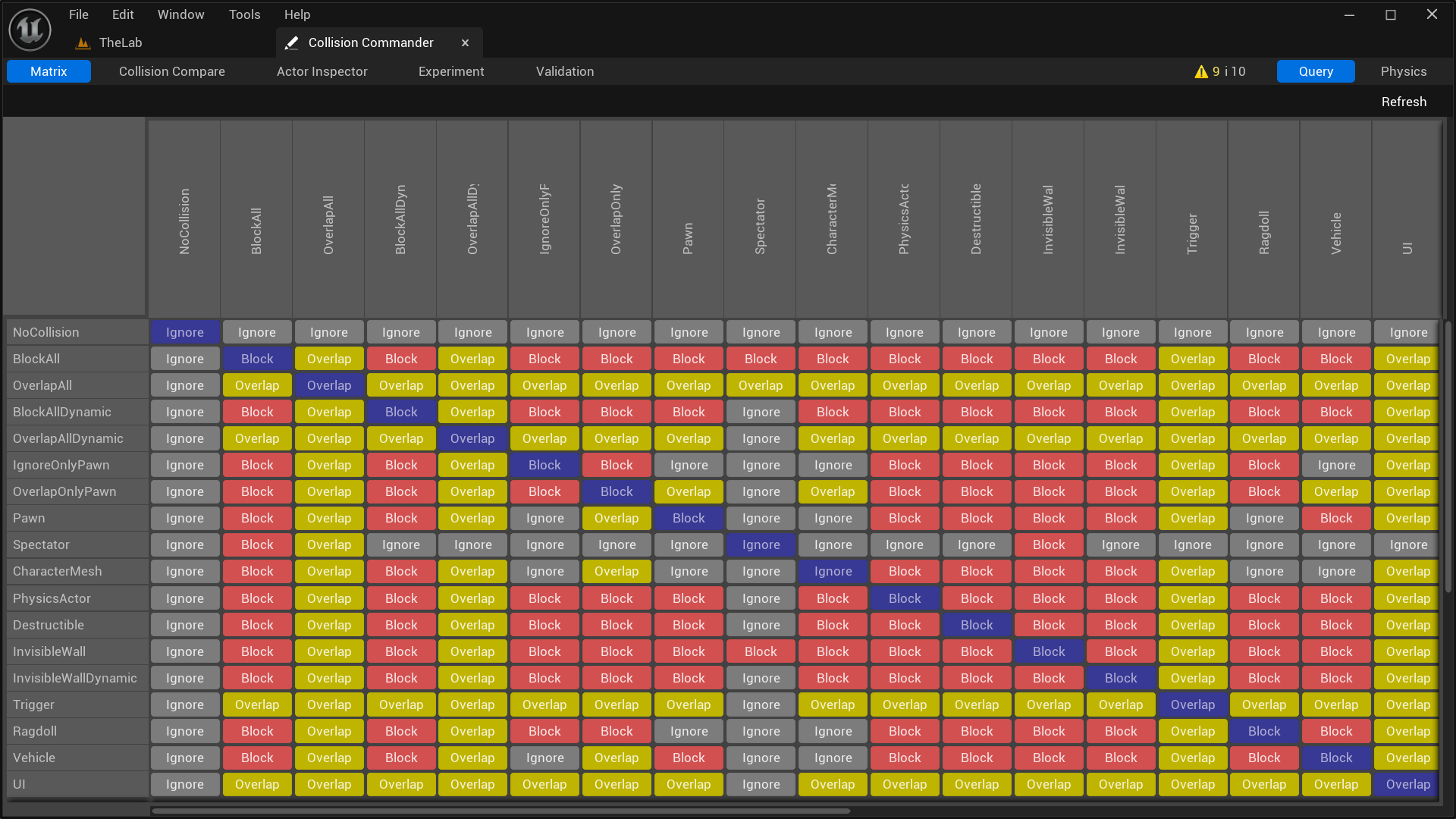
The Matrix panel is an N×N color-coded grid. Every preset pair resolves to BLOCK, OVERLAP, or IGNORE, live, always current, never a stale screenshot.
Panel 02 — Collision Compare
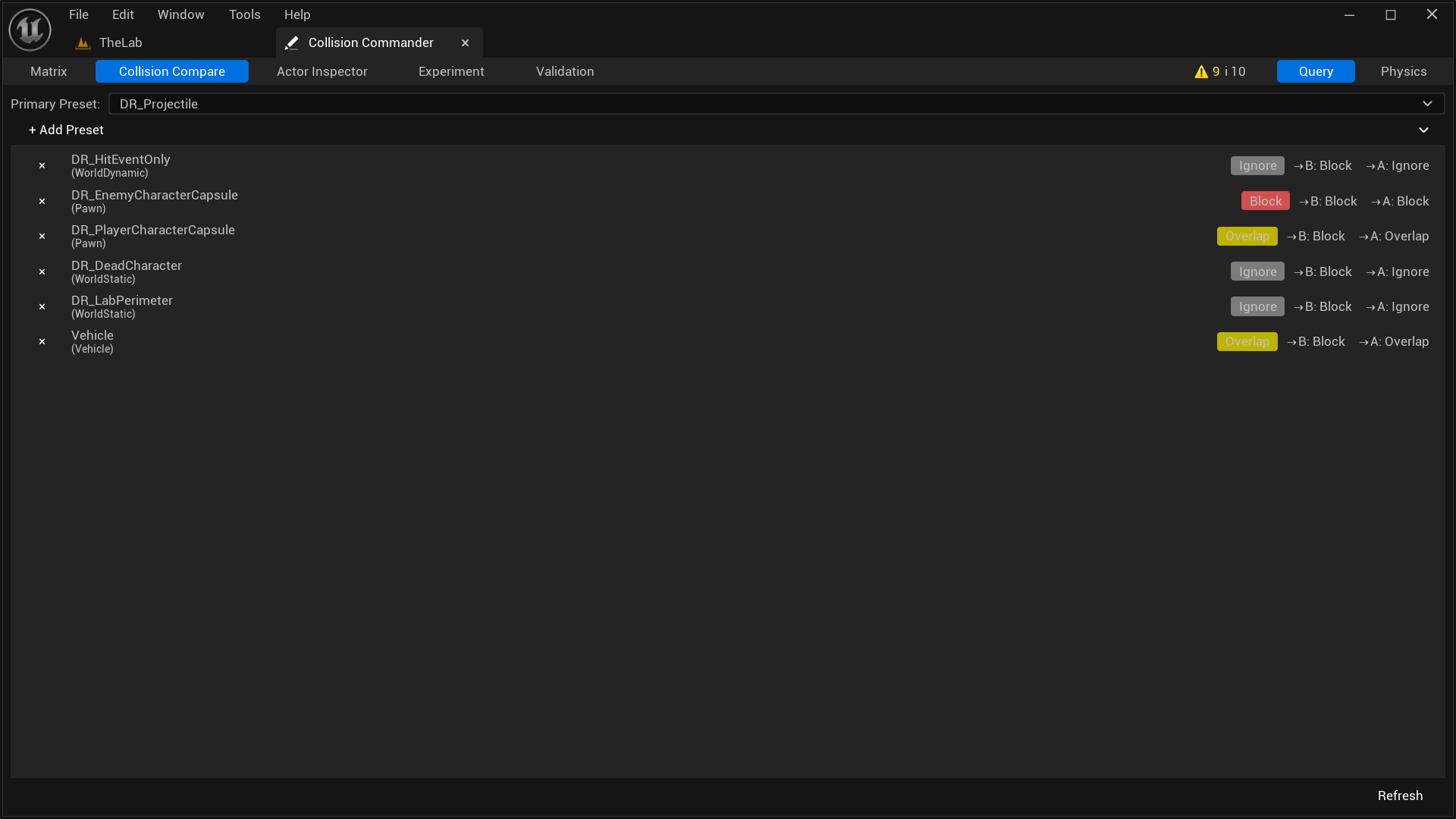
Pick a focus preset from the dropdown and add any number of others to compare against. Collision Compare shows you exactly how that preset resolves against each one, with both contributing responses visible per row.
Panel 03 — Actor Inspector
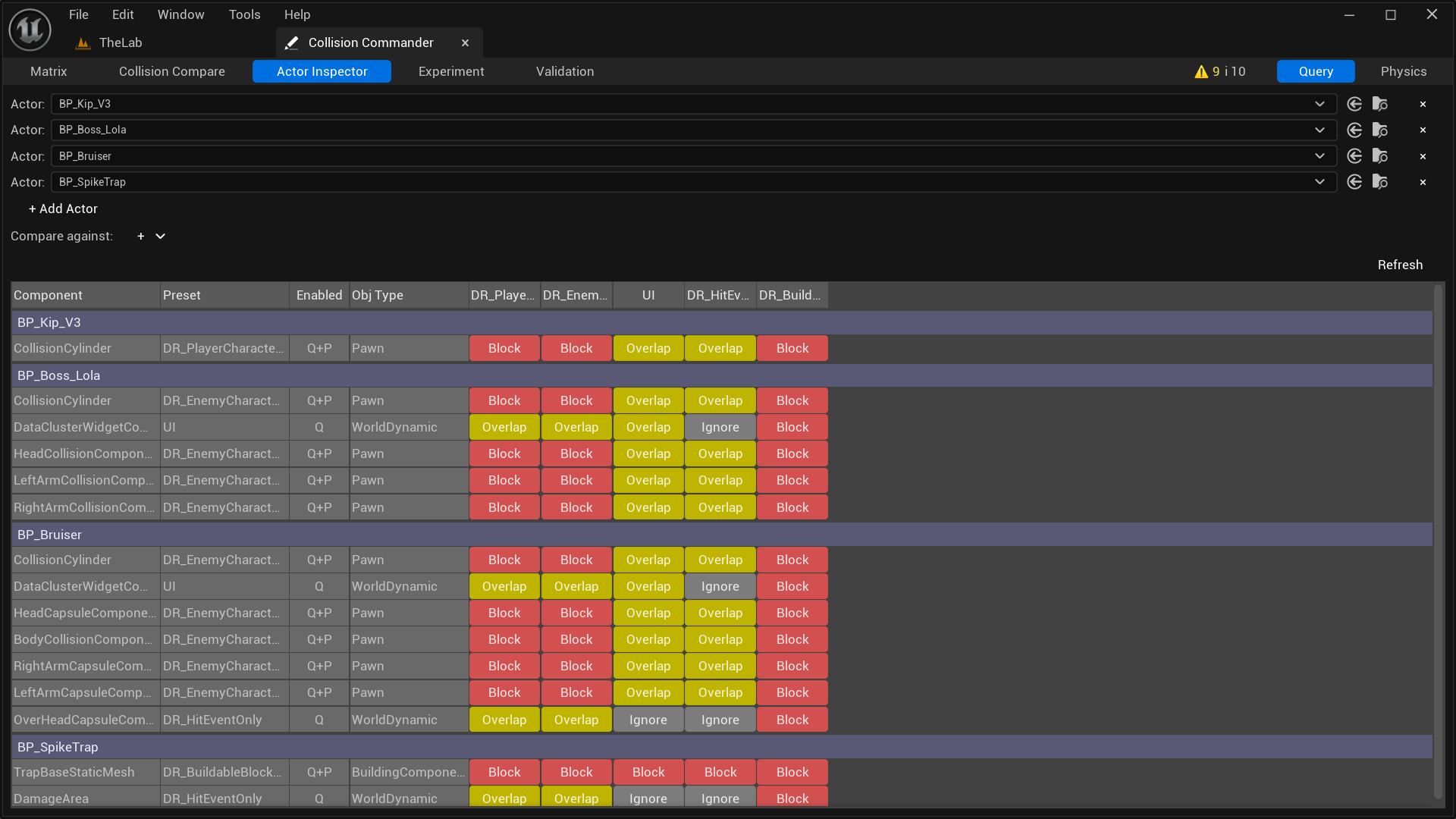
Pick any Blueprint actor from the level or Content Browser. Actor Inspector lists every collision-capable component on that actor and shows exactly how each one interacts with a set of presets you choose.
| Component | Preset | En. | DR_Player… | DR_Enemy… | UI |
|---|---|---|---|---|---|
| BP_Kip_V3 | |||||
| CollisionCylinder | DR_PlayerChar… | Q+P | BLK | BLK | OVR |
| BP_Boss_Lola | |||||
| CollisionCylinder | DR_EnemyChar… | Q+P | BLK | BLK | OVR |
| HeadCollisionComponent | DR_EnemyChar… | Q+P | BLK | BLK | OVR |
Panel 04 — Experiment
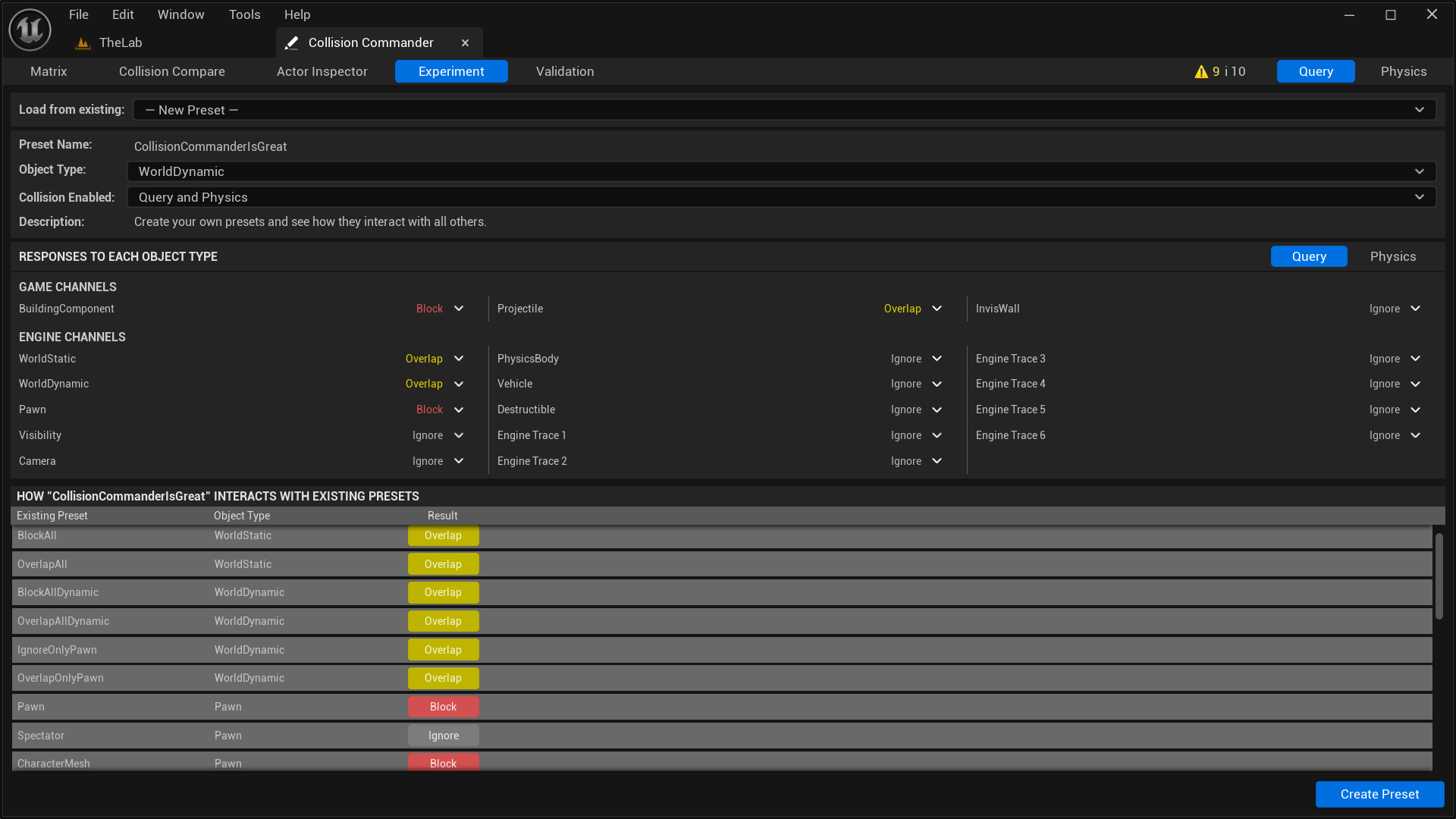
The Experiment panel is a live preset designer. Set a name, object type, collision mode, and per-channel responses. The interaction table updates instantly, showing how your new preset would behave against every existing one. Hit Create Preset when you're satisfied.
Panel 05 — Validation
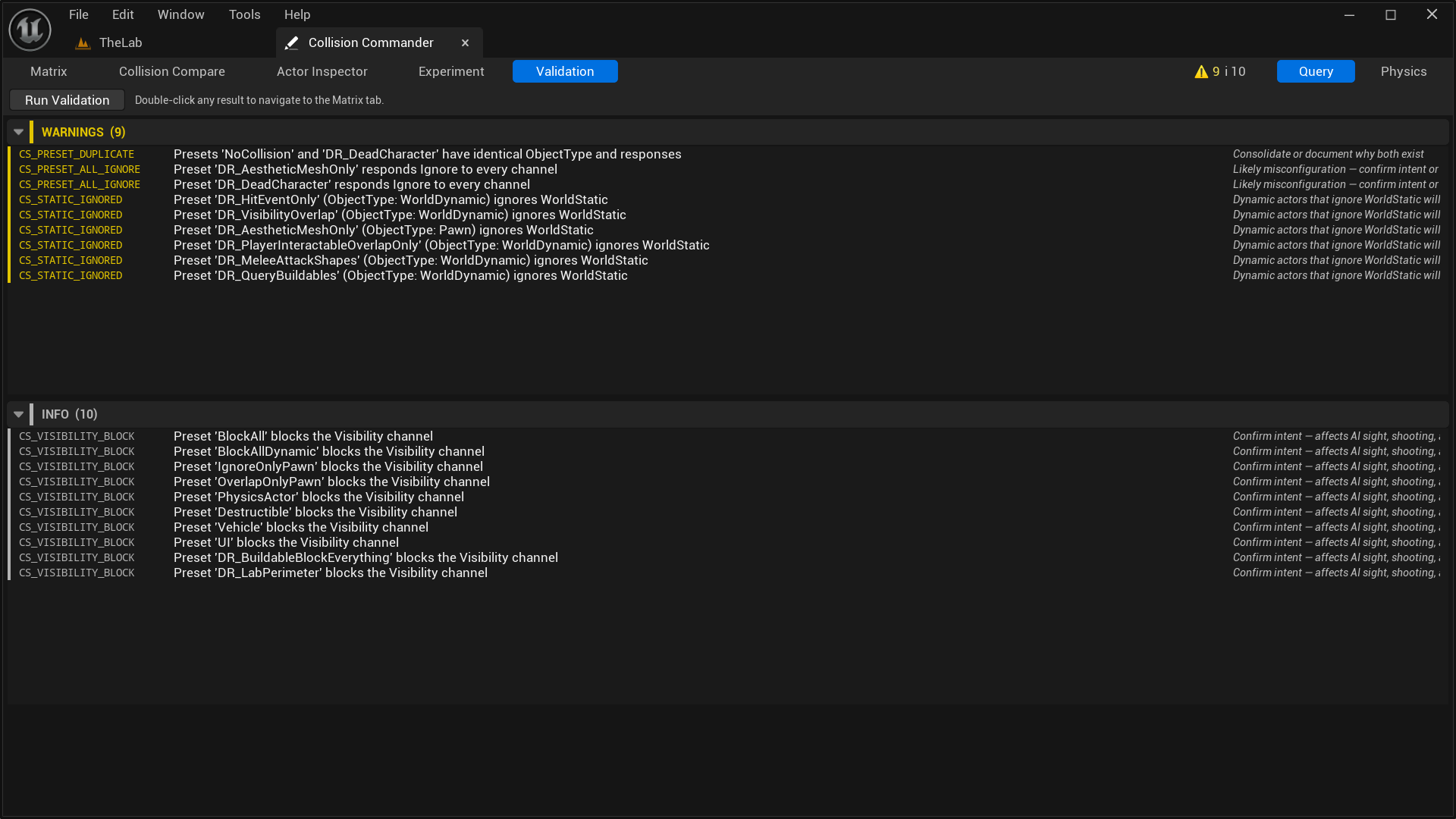
Ten built-in rules catch common collision mistakes: duplicate presets, all-Ignore configs, silently-overridden Block responses, and CS_VISIBILITY_BLOCK surprises. Runs automatically on every refresh.
What's next
Collision Commander ships as a complete tool today. These updates are planned post-launch based on user requests and our own production use.
✓ Shipped
Matrix, Collision Compare, Actor Inspector, Experiment, and Validation. All live at launch.
Planned
Export the full collision state to a formatted 5-sheet .xlsx workbook for QA, leads, or code review. Triggered via toolbar button, no auto-saves.
Planned
Track a single actor during Play-In-Editor and log every runtime collision state change, including calls made via Blueprint or C++ at runtime.
Considering
All post-launch directions are shaped by what buyers ask for. If you need something not on this list, reach out.
Changelog
Documentation
Everything you need to use Collision Commander effectively. Download as PDF ↓
Install Collision Commander from your Fab.com library via the Epic Games Launcher. Enable it in your project under Edit → Plugins → search "Collision Commander" → Enable → restart the editor.
A C++ project (or stub module) is required for the plugin to compile. Blueprint-only projects are fully supported once this prerequisite is met. The plugin itself adds no C++ requirement to your project code.
Go to Window → Collision Commander in the main menu bar, or click the toolbar button added to the Level Editor toolbar. The panel is a dockable Nomad Tab, so you can drag it anywhere in the editor layout.
On each editor startup, Collision Commander makes a
single request to paracosm.gg to check
whether a newer version is available. If one is
found, a notice appears in the Matrix tab toolbar.
No personal data is sent. To opt out, go to
Edit → Project Settings → Plugins → Collision
Commander
and disable Check for Updates.
Unreal Engine stores two independent sets of collision responses per preset. The toggle at the top right of most panels controls which set you're viewing:
UE resolves interactions using the minimum of both actors' responses:
result = min(A's response to B's ObjectType,
B's response to A's ObjectType)
Where Ignore (0) < Overlap (1) < Block (2). If either side is Ignore, the result is always Ignore regardless of the other side. Collision Commander applies this rule for every cell in the matrix.
An N×N grid where every row is a preset (Actor A) and every column is a preset (Actor B). Each cell shows the resolved interaction between that pair using UE's pairwise resolution rule.
A thick border divides UE's 14 built-in presets (top-left block) from your custom presets (bottom-right block). This helps you spot when a custom preset is misconfigured relative to the built-ins.
Hovering any non-diagonal cell shows:
Left-clicking any non-diagonal cell switches to the Collision Compare panel and pre-populates it with the row preset as the focus and the column preset as the first comparison entry.
Click the Refresh button to re-read
UCollisionProfile
and rebuild the matrix. The matrix also
auto-refreshes when Project Settings change during
your editor session.
The Matrix gives you the full picture, but hunting down a specific pairing in a large grid gets old fast. Collision Compare gives you a focused view: pick one preset as your focus, then add however many others you want to compare against. One table, all the pairings you care about.
Good example: set your Projectile preset as the focus and add all your character and enemy presets. You'll see in one shot what it blocks, overlaps, or ignores across the board.
Each row shows the comparison preset name, a color-coded BLOCK / OVERLAP / IGNORE badge, the A→B raw response, and the B→A raw response. Hover any row for the full tooltip.
When a pairing resolves to OVERLAP, a warning icon appears on that row. This is a reminder that for BeginOverlap to actually fire at runtime, both actors need Generate Overlap Events enabled. A resolved OVERLAP result is necessary but not sufficient.
A single actor can have a capsule, a skeletal mesh, a hitbox sphere, and a weapon trace component, each with its own preset and settings. Checking them individually in the Details panel is slow and gives you no combined view.
There's also a hidden problem worth knowing about: if you manually edit a component's collision responses in the Details panel without assigning a named preset, it gets set to Custom. That bypasses the preset system entirely and makes that component's collision harder to audit. The Actor Inspector calls that out explicitly.
Any component using a Custom profile gets a ⚠ icon with a tooltip explaining the issue. These warnings are also forwarded to the Validation tab automatically when you refresh.
When you're thinking about adding a new preset or changing how an existing one behaves, there's no safe way to preview that in vanilla UE without actually editing Project Settings and then undoing if it's wrong. Experiment is a sandbox for that. Design a preset, tweak its channel responses, and see exactly how it would interact with everything else in your project before you commit to anything.
When you're happy with the result, press Create Preset. You'll get a confirmation dialog before anything writes. If you loaded from an existing preset and kept the same name, you'll be asked to confirm an overwrite. That's the only point in Collision Commander where data gets written back to Project Settings.
When an experiment is in progress the panel shows a visible indicator so you always know you're in a modified state. Close without committing and everything is discarded.
Validation runs automatically every time you refresh the matrix and every time you commit an experiment. Results are shown in the Validation panel and summarised as a badge count on the toolbar.
Need help?
For help, bug reports, and feature requests, email us directly. Using the subject line format below helps us respond faster.
A few things that usually answer common questions quickly:
Licensing
All updates included. Available on Fab.com under the standard Engine Plugin license.
Solo
Single seat. Binary license.
Studio
Studio binary license. Team use under a single purchase.